





















































A slow computer can turn even simple tasks into frustrating experiences. You press the power button, wait for the loading screen, and spend precious minutes watching your PC struggle to become usable. If this happens every day, you’re not alone. Millions of Windows users experience sluggish boot times that affect productivity and create unnecessary stress.
The good news is that learning how to fix slow startup Windows problems is often easier than most people think. In many cases, a few adjustments can significantly reduce boot time and make your computer feel brand new again.
This guide explains the most effective ways to improve Windows startup speed, identifies common causes of slow boot issues, and shares practical solutions that work for both beginners and advanced users.
Why Does Windows Start Slowly?
Before exploring how to fix slow startup Windows issues, it’s important to understand what causes them.
Several factors can affect boot performance, including:
- Too many startup applications
- Low storage space
- Outdated drivers
- Malware or viruses
- Fragmented hard drives
- Corrupted system files
- Failing hardware components
- Pending Windows updates
According to industry reports, computers with excessive startup programs can experience boot times that are two to three times longer than optimized systems.
Fortunately, most startup delays can be resolved without replacing your computer.
Disable Unnecessary Startup Programs
One of the quickest ways to improve slow Windows startup performance is to reduce the number of startup applications.
Many programs automatically launch when Windows starts. While some are necessary, many consume valuable system resources.
How to Disable Startup Programs
- Press Ctrl + Shift + Esc.
- Open Task Manager.
- Click the Startup Apps tab.
- Review each application.
- Disable programs you don’t need immediately after boot.
Applications like messaging apps, game launchers, and cloud storage clients frequently contribute to slow startup times.
Even disabling a handful of unnecessary apps can dramatically improve system responsiveness.
Free Up Disk Space
Storage shortages can significantly impact system performance.
If your system drive is nearly full, Windows has limited room to perform essential startup operations. People searching for how to fix slow startup Windows issues often discover that insufficient disk space is the hidden culprit.
Ways to Free Up Storage
- Delete temporary files
- Empty the Recycle Bin
- Uninstall unused software
- Move large files to external drives.
- Use Storage Sense
Windows performs best when at least 15 to 20 percent of the system drive remains free.
Update Windows and Device Drivers
Outdated software can create compatibility problems and slow system boot sequences.
If you’re serious about learning how to fix slow startup Windows systems, keeping Windows and drivers updated should become a routine habit.
Update Windows
- Open Settings.
- Select Windows Update.
- Click Check for Updates.
Update Drivers
Focus particularly on:
- Graphics drivers
- Storage controller drivers
- Network adapters
- Chipset drivers
Updated drivers often contain performance improvements and bug fixes that directly affect startup speed.
Author Bio
| Field | Details |
|---|---|
| Name | Naveed Khatri |
| Profession | Technology Writer, Cybersecurity Researcher, and AI Enthusiast |
| Website | https://moderntrendsnow.com/ |
| Expertise | Cybersecurity, Emerging Technologies, Artificial Intelligence (AI), Digital Innovation |
| Social Profiles | LinkedIn, Medium, Reddit |
Scan for Malware and Security Threats
Malicious software can quietly consume system resources and interfere with normal startup processes.
A crucial step in how to fix slow startup Windows problems is ensuring your computer is free from malware.
Perform a Security Scan
- Open Windows Security.
- Select Virus & Threat Protection.
- Run a Full Scan.
For deeper inspections, you can occasionally use reputable malware scanners alongside Microsoft Defender.
A clean system generally boots faster and performs more reliably.
Check Your Storage Drive Health
Storage devices naturally degrade over time.
Traditional hard disk drives are particularly susceptible to performance deterioration. Users looking for how to fix slow startup Windows problems should evaluate their drive’s health.
Warning Signs of Drive Failure
- Clicking sounds
- Frequent freezing
- File corruption
- Extremely slow startup
- Unexpected crashes
If your PC still uses an HDD, upgrading to an SSD may be the single biggest performance improvement available.
Many users report startup times dropping from several minutes to less than twenty seconds after migrating to solid-state storage.
Enable Fast Startup
Windows includes a built-in feature called Fast Startup that helps reduce boot times.
Understanding how to fix slow startup Windows concerns often involves enabling features that already exist within the operating system.
Turn On Fast Startup
- Open Control Panel.
- Select Power Options.
- Click Choose what the power buttons do.
- Select Change settings that are currently unavailable.
- Enable Turn on fast startup.
This feature stores certain system information between shutdowns, allowing Windows to start more efficiently.
Repair Corrupted System Files
Corrupted operating system files can create startup delays and stability issues.
Anyone researching how to fix slow startup Windows systems should perform occasional system integrity checks.
Use System File Checker
Open Command Prompt as Administrator and run:
sfc /scannowThen execute:
DISM /Online /Cleanup-Image /RestoreHealthThese built-in utilities repair damaged files and restore missing system components.
Reduce Background Services
Some applications install services that constantly run in the background.
These services may not be essential and can increase boot times.
Review Background Services
- Press Windows + R.
- Type msconfig.
- Open Services.
- Hide Microsoft services.
- Review third-party services carefully.
Disabling unnecessary services is another effective strategy for how to fix slow startup Windows systems without purchasing new hardware.
Upgrade Hardware for Maximum Speed
Software optimizations are helpful, but hardware limitations sometimes become the bottleneck.
Consider Upgrading:
Install an SSD
An SSD delivers dramatically faster read and write speeds than traditional hard drives.
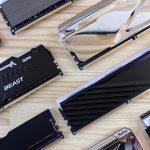
Add More RAM
Additional memory helps Windows manage startup tasks more efficiently.
Replace Aging Components
Faulty drives and deteriorating hardware can severely affect startup performance.
For older systems, hardware upgrades often provide the most noticeable improvements.
Prevent Future Startup Problems
Once you’ve learned how to fix slow startup Windows issues, preventive maintenance becomes equally important.
Best Practices
- Keep Windows updated
- Install software carefully
- Avoid unnecessary startup apps
- Maintain sufficient free storage
- Run periodic malware scans
- Restart your computer regularly
- Monitor hardware health
Small maintenance habits can prevent startup issues from returning.
Common Startup Mistakes to Avoid
Many users unintentionally make startup performance worse.
Avoid these mistakes:
- Installing too many utility programs
- Ignoring update notifications
- Filling the system drive completely
- Running multiple antivirus products
- Delaying hardware replacements
- Never cleaning temporary files
Recognizing these mistakes is an important aspect of understanding how to fix slow startup Windows challenges permanently.
Recent Posts
- Best Apple TV Shows You Have to Watch in 2026
- The Best Electric Kettle That Makes Every Cup Better
- MacBook Pro M3: Why you should buy this Apple laptop
- How to Fix Windows Update Error and Get Your PC Running Again
- Why Prompt EMR Is Changing the Future of Medical Practice
Frequently Asked Questions
Why is my Windows computer taking so long to start?
Slow startup usually occurs because of too many startup applications, outdated drivers, malware infections, insufficient storage, or aging hardware.
Does upgrading to an SSD improve startup speed?
Yes. Installing an SSD is often the most effective solution for improving boot times and overall system responsiveness.
Can viruses make Windows start slowly?
Absolutely. Malware can consume resources, interfere with system processes, and significantly increase startup times.
How often should I clean startup applications?
Review startup applications every few months or whenever you install new software.
Is Fast Startup safe to use?
Yes. Fast Startup is a built-in Windows feature designed to improve boot performance for most users.
Can low disk space slow down startup?
Yes. Windows requires available storage to perform temporary operations and manage startup processes efficiently.
Conclusion
A slow computer startup can be incredibly frustrating, but it doesn’t always mean your PC is outdated or beyond repair. Understanding how to fix slow startup Windows issues begins with identifying the root causes and applying targeted solutions. Disabling unnecessary startup programs, freeing disk space, updating drivers, scanning for malware, repairing system files, and upgrading hardware when necessary can dramatically improve boot performance.
Most importantly, maintaining good computer habits will keep your system running smoothly for years to come. Start with one or two optimization steps today, and you’ll likely notice a faster, more responsive Windows experience almost immediately.
