






















































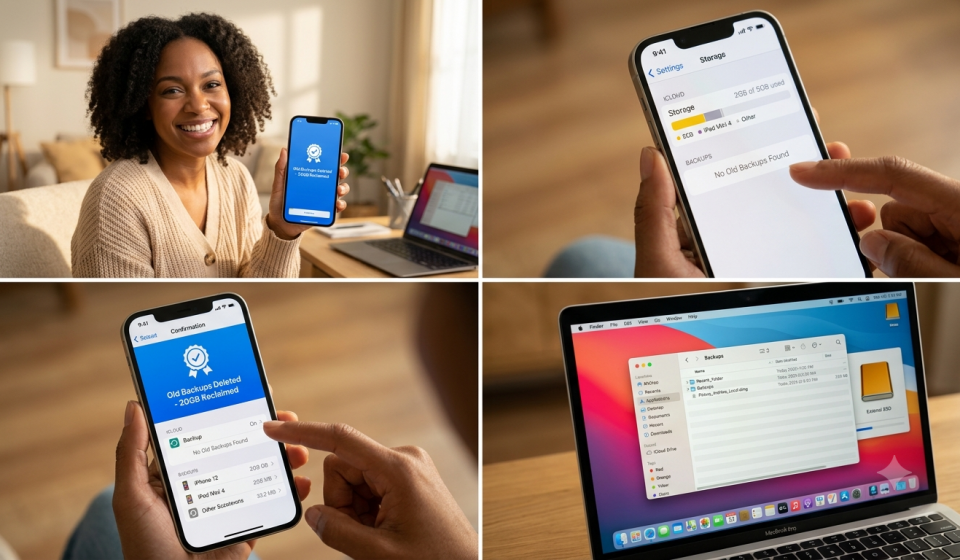

Apple devices are legendary for their longevity, seamless integration, and effortless data synchronization. Between taking stunning high-resolution photos, downloading essential productivity apps, and keeping track of messages, our digital footprints expand at an astonishing rate. To protect this valuable data, Apple provides every user with 5 GB of complimentary iCloud storage. While this free tier is incredibly generous for basic needs, it quickly vanishes once multiple devices start uploading their automated system snapshots.
When your cloud storage fills up, your devices stop backing up, photos cease syncing across your ecosystem, and those persistent “iCloud Storage Is Full” alerts begin to clutter your screen. Upgrading to a premium iCloud+ plan is a valid option, but before you pull out your credit card, there is a much smarter, cost-effective housekeeping step you should take. Learning how to delete old backups on iCloud allows you to purge redundant, obsolete data from devices you no longer even own, instantly freeing up gigabytes of premium cloud real estate.
Managing your digital clutter does not require advanced technical expertise. This comprehensive, step-by-step guide will walk you through the entire process of streamlining your cloud environment, helping you master how to delete old backups on iCloud safely and permanently.
Why Is Your iCloud Storage Full?
The primary reason most Apple users run out of cloud capacity is not because of their current daily usage, but rather due to historical data accumulation. Every time you upgrade to a new iPhone or iPad, the system creates a distinct snapshot of that device. Unless you manually intervene, the servers retain these older system images indefinitely.
If you have upgraded your phone every two years and used the quick-start migration feature, your account might still be hosting substantial data packages from an iPhone 11 or an old iPad mini that you sold or recycled years ago. Identifying these digital ghosts and discovering how to delete old backups on iCloud is the single most effective way to optimize your account.
Beyond system snapshots, individual application data, large email attachments, and shared family photo albums constantly nibble away at your allocated limit. By systematically clearing out obsolete files, you restore functionality to your device ecosystem without spending a dime on additional monthly subscription fees.
What Happens When You Delete an iCloud Backup?
Before diving into the technical steps, it is natural to feel a bit apprehensive about removing backup data. Let’s demystify exactly what happens during this process.
When you learn how to delete old backups on iCloud and execute the command for a specific device, you are only removing the historical snapshot stored in the cloud. You are not deleting any active photos, messages, contacts, or application data currently residing on your physical iPhone, iPad, or Mac.
Important Note: If you choose to remove the data repository for a device you are currently using, the system will also turn off iCloud Backup for that specific device. However, you can easily toggle the feature back on immediately afterward to generate a fresh, streamlined snapshot.
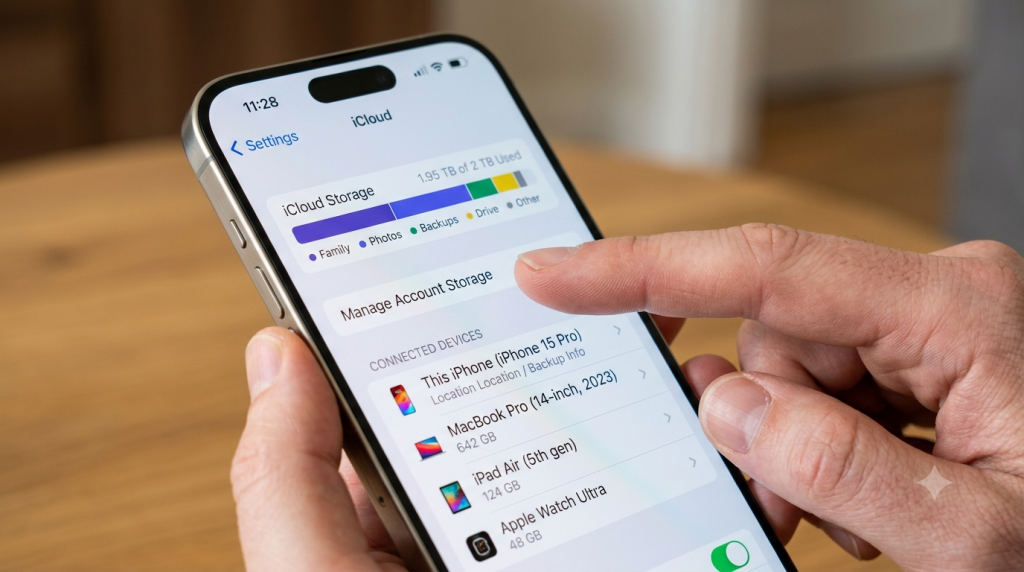
How to Delete Old Backups on iCloud from an iPhone or iPad
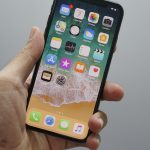
For the vast majority of users, the quickest way to manage cloud storage is directly from a iOS or iPadOS device. The interface is intuitive, allowing you to view exactly which hardware profiles are tied to your Apple ID.
Here is the exact sequence to follow on your mobile device:
- Open the Settings application on your iPhone or iPad.
- Tap on your Apple ID name located at the very top of the screen.
- Select iCloud from the menu options.
- Tap on Manage Account Storage (or Manage Storage depending on your iOS version).
- Locate and tap on the Backups option.
- You will now see a comprehensive list of all devices currently saving data to your account. Tap on the specific device profile you wish to remove.
- Scroll down to the bottom of the page and tap the red Delete & Turn Off button.
By following these simple steps, you successfully execute how to delete old backups on iCloud, instantly wiping that specific archive from Apple’s servers and freeing up valuable space for your current daily drivers.
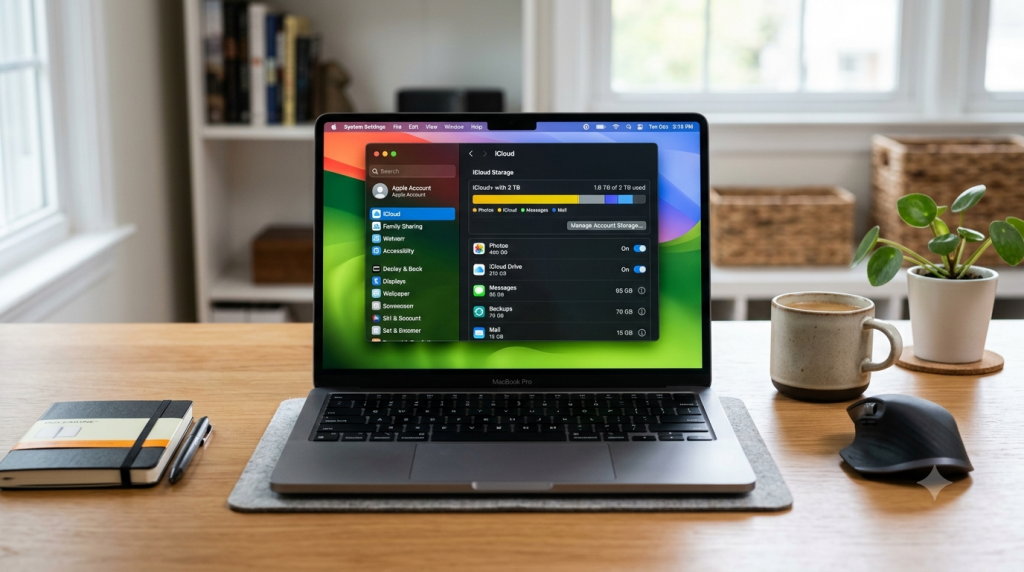
Managing Cloud Storage Profiles Using a Mac
If you prefer working on a desktop or laptop, macOS provides a highly centralized control panel for managing your cloud ecosystem. This method is exceptionally useful if your iPhone is currently unresponsive or if you simply prefer a larger display to review your file directories.
To clean up your account using a Mac, follow these directions:
- Click on the Apple menu icon in the top-left corner of your desktop.
- Select System Settings (or System Preferences on older macOS versions).
- Click on your Apple ID name at the top of the left-hand sidebar.
- On the right side of the window, click on iCloud.
- Click the Manage… button located next to the storage breakdown bar.
- Select Backups from the left-hand column.
- Choose the outdated device profile from the displayed list.
- Click the Delete icon (represented by a minus sign or a clear text button) at the bottom of the window.
Knowing how to delete old backups on iCloud through macOS ensures that you can keep your storage tidy even if you do not have your primary mobile device on hand.
How to Clear Outdated Backups on Windows PC
Apple recognizes that millions of users rely on Windows computers alongside their mobile devices. To accommodate this, the iCloud for Windows application offers complete account management tools.
If you are using a PC, here is how to handle your storage:
- Launch the iCloud for Windows application.
- Sign in using your unique Apple ID credentials if prompted.
- Click on the Storage button to open the management layout.
- Select Backups from the list of categories on the left side.
- Click on the old device profile that you want to eliminate.
- Click the Delete button and confirm your choice when prompted.
This cross-platform flexibility makes mastering how to delete old backups on iCloud accessible to everyone, regardless of their preferred desktop operating system.
Optimizing App Data Usage for Future Backups
Once you have learned how to delete old backups on iCloud and have successfully removed giant, obsolete archives, it is time to implement preventative measures. You can customize exactly what data your current device uploads during its nightly maintenance cycle.
Many third-party apps, such as graphics-heavy mobile games, media players, or video editing suites, store immense amounts of temporary cache data inside their primary folders. If left unchecked, these apps clog your daily synchronization file.
To optimize your ongoing data footprints:
- Go back to Settings > [Your Name] > iCloud > Manage Account Storage > Backups.
- Select your current device.
- Under the Choose Data to Back Back Up section, tap Show All Apps.
- Toggle off the switches for any non-essential apps that do not require cloud security.
This targeted approach prevents your cloud environment from ballooning in size again, ensuring that you won’t have to constantly look up how to delete old backups on iCloud every few months.
Alternative Solutions for Data Preservation
If you feel nervous about completely wiping out old device archives, you do not have to abandon data security. There are excellent local preservation methods available that do not cost a single cent in recurring cloud fees.
Local Backups via Finder or iTunes
Before you execute the process of how to delete old backups on iCloud, you can create a physical, encrypted copy of your iPhone or iPad directly onto your computer’s hard drive. Mac users can utilize the native Finder app, while Windows users can download iTunes. Connecting your phone via a USB cable and choosing “Back up all of the data on your iPhone to this Mac/PC” creates an absolute clone of your device.
Utilizing External Solid-State Drives
For those who want absolute physical control over their historical archives, modern iPads and iPhones running recent operating systems support direct data transfers to external solid-state drives (SSDs). You can manually move large video projects, photo libraries, and documents to a physical drive, allowing you to confidently proceed with how to delete old backups on iCloud without losing precious memories.
Frequently Asked Questions
Will deleting an old backup delete my current photos?
No. Deleting an old cloud snapshot only removes the historical compressed system file. It has absolutely no impact on the active photos, messages, or files currently saved locally on your working iPhone or iPad.
Why does my phone say iCloud storage is full right after deleting an old archive?
Sometimes, server synchronization takes a few minutes to reflect across all your devices. If the warning persists after you walk through how to delete old backups on iCloud, try restarting your iPhone or signing out of your Apple ID and signing back in to force a fresh server refresh.
How often should I check and clean out my old cloud data?
It is a great digital hygiene practice to review your cloud allocation once or twice a year, or immediately after upgrading to a new Apple device. Keeping a routine schedule for how to delete old backups on iCloud keeps your account lean and efficient.
Can I recover a backup after I have deleted it from the cloud?
No, this action is permanent. Once you confirm that you want to delete an archive from the cloud servers, the data is completely erased. If you think you might need that data in the future, make a local copy on a computer before proceeding with how to delete old backups on iCloud.
Does deleting old backups affect my WhatsApp chats?
WhatsApp manages its own independent backup stream within iCloud. Removing a system snapshot will not delete your WhatsApp history, provided you keep the independent WhatsApp sync toggle turned on in your iCloud settings.
Conclusion
Managing your cloud environment does not need to be an overwhelming chore. By understanding how to delete old backups on iCloud, you can effortlessly reclaim gigabytes of premium storage space, eliminate those irritating notification pop-ups, and ensure that your current devices are backing up successfully. Mastering how to delete old backups on iCloud saves you money and keeps your Apple ecosystem running at peak performance. Take five minutes today to audit your device list, purge the digital ghosts of the past, and enjoy a perfectly organized cloud experience.