























































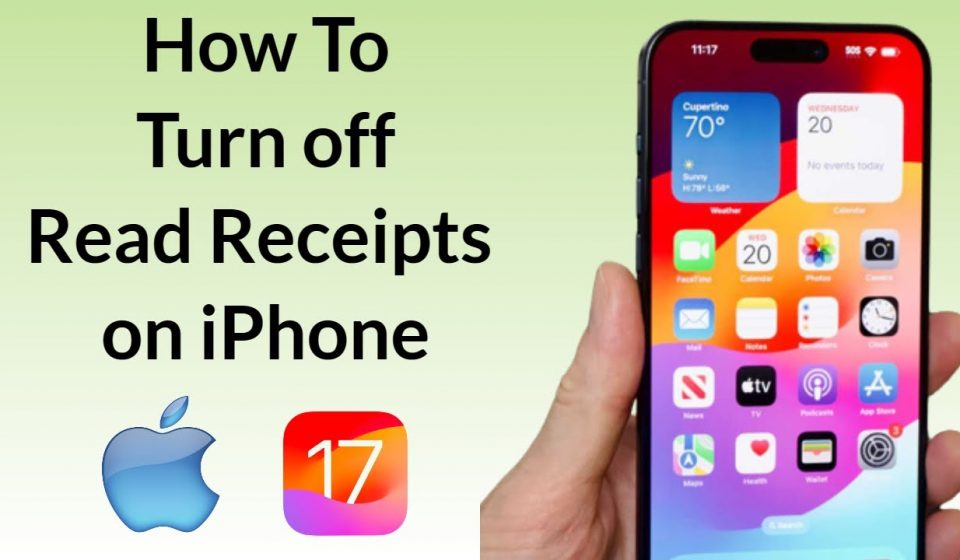
How to Turn Off Read Receipts on iPhone Without Anyone Knowing

Table of Contents
TogglePrivacy matters, and if you have ever sent a message and immediately regretted letting the other person know you read it, you are not alone. Millions of iPhone users every day are quietly searching for how to turn off read receipts on iPhone, and for good reason. Whether you need breathing room to reply at your own pace, want to protect your personal space, or simply prefer not to broadcast your online activity to every contact in your list, disabling read receipts is one of the smartest and most underrated iPhone privacy moves you can make.
In this guide, you will get a thorough, step-by-step walkthrough covering every method available from system-wide settings to contact-by-contact control, along with tips, common mistakes to avoid, and answers to the questions people mostly ask. No technical background required. Just follow along, and you will have full control over your messaging privacy in minutes.
Why Read Receipts Exist and Why You Might Want Them Off
Apple introduced read receipts as a way to bring transparency to digital communication. When you open a message, your contact sees a small “Read” label with a timestamp beneath their last message. It sounds helpful in theory, and for some people it genuinely is. But for many others, it creates an invisible kind of pressure.
The moment someone sees that “Read” notification, the clock starts ticking. Suddenly, your silence becomes a statement. You read their message but have not replied, and now they know it. For people managing anxiety, busy schedules, complicated relationships, or simply a preference for communication on their own terms, this dynamic can feel overwhelming.
That is precisely why knowing how to turn off read receipts on iPhone is such a valuable piece of knowledge. It gives you back control without requiring you to explain yourself to anyone.
How to Turn Off Read Receipts on iPhone System-Wide
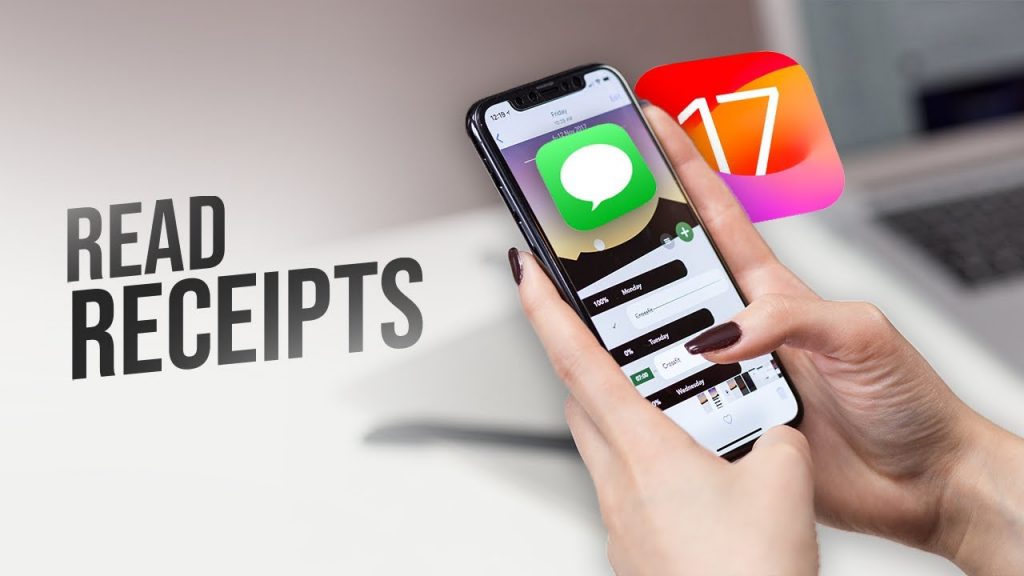
The most straightforward approach is disabling read receipts globally. This turns them off for every iMessage conversation at once.
Step-by-Step: Disabling Read Receipts for All Contacts
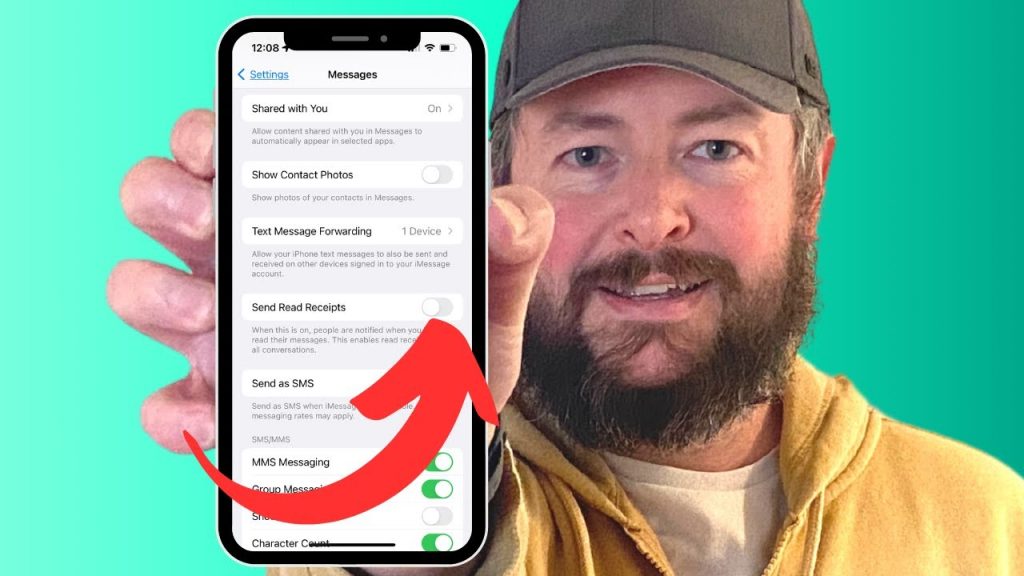
- Open the Settings app on your iPhone.
- Scroll down and tap Messages.
- Find the toggle labeled Send Read Receipts.
- Tap the toggle to turn it off. It will turn gray when disabled.
That is it. Once this setting is off, no one in your iMessage contacts will be able to see when you have read their messages. This change takes effect immediately and applies to all existing and future conversations.
This is the fastest and most complete way of handling how to turn off read receipts on iPhone if you want a blanket solution with zero exceptions.
What Changes After You Disable This Setting
Once you complete the steps for how to turn off read receipts on iPhone, your contacts will only see “Delivered” beneath their sent messages, never “Read.” They will have no way of knowing whether you have opened the conversation. You, however, can still see read receipts from contacts who have the feature enabled on their end, so you lose nothing in terms of information.
How to Turn Off Read Receipts on iPhone for Specific Contacts Only
Not every relationship calls for the same level of privacy. You might be comfortable with your partner or best friend seeing your read receipts, but prefer to keep things more private with coworkers, acquaintances, or distant family members. Apple makes this possible with per-contact read receipt settings.
Step-by-Step: Disabling Read Receipts for One Person
- Open the Messages app and tap on the conversation thread with that specific person.
- Tap the contact’s name or profile icon at the top of the screen.
- Tap the Info button (the small “i” in a circle).
- Scroll down and look for the Send Read Receipts toggle.
- Turn the toggle off.
This change only affects that one conversation. Every other contact remains unaffected, meaning you have granular, conversation-level control.
This method of handling how to turn off read receipts on iPhone for individual contacts is ideal for situations where you want selective privacy without turning off the feature entirely.
Important Note About Per-Contact Settings
If you are learning how to turn off read receipts on iPhone on a contact-by-contact basis, remember that per-contact settings override your global setting in both directions. If read receipts are globally disabled but you enable them for one specific person, that person will see your read receipts. Conversely, if read receipts are globally on but you disable them for one contact, that contact alone will not receive them. This flexibility is one of the more thoughtful design choices Apple has built into iOS.
Does This Work for SMS Messages Too?
Here is an important distinction that many users miss when researching how to turn off read receipts on iPhone. Read receipts in the traditional sense the “Read” label beneath a message are exclusive to iMessage, which is Apple’s own messaging platform used between Apple devices. SMS messages (the green bubbles) do not support read receipts through iOS settings at all.
So when you are thinking about how to turn off read receipts on iPhone, the setting you are adjusting only applies to iMessage conversations, those shown with blue bubbles. Green bubble SMS conversations are not affected by this toggle because read receipts for SMS depend on your carrier and are generally not a feature of standard text messaging in most regions.
If your goal is to manage read receipts across all platforms, including WhatsApp, Instagram, Telegram, or other apps, you will need to adjust settings within each application, as those operate on their own separate systems.
Managing Read Receipts in Third-Party Messaging Apps
Once you know how to turn off read receipts on iPhone natively, you will quickly realize that many people spend just as much time in third-party apps. Since so much communication now happens outside of iMessage, it is worth understanding how to manage read receipts across the apps people use most.
In WhatsApp, you can disable read receipts by going to Settings > Privacy and toggling off Read Receipts. Note that this also disables your ability to see read receipts from others in individual chats. Group chat read receipts cannot be turned off in WhatsApp.
Instagram Direct Messages
Instagram does not offer a native toggle to disable read receipts in DMs. Your best workaround is to read messages through the notification preview without opening the app, or use Airplane Mode before opening the conversation, though this is less reliable on newer iOS versions.
Telegram
Telegram does not have traditional read receipts for one-on-one chats, but it does show “last seen” status. You can control this under Settings > Privacy and Security > Last Seen & Online.
Understanding how to turn off read receipts on iPhone is just the beginning; managing your privacy across all the apps you use creates a more complete shield.
Common Mistakes People Make
Even after learning how to turn off read receipts on iPhone, a few missteps can undo your privacy settings without you realizing it.
Updating iOS without checking settings:
Occasionally, major iOS updates can reset certain toggles. It is worth checking your read receipt setting after any significant update.
Forgetting third-party apps:
Turning off iMessage read receipts does nothing for WhatsApp, Snapchat, or any other platform. Privacy needs to be managed app by app.
Confusing Delivered with Read:
Even with read receipts off, messages will still show as “Delivered.” Some people assume this means their privacy settings did not work it does not. “Delivered” simply means the message reached the device. “Read” is the notification that gets suppressed when you disable the feature.
Not checking per-contact overrides:
If you turned receipts off globally but they seem to be active for one person, check whether you or that contact has a per-conversation override enabled. Revisiting these details is part of truly mastering how to turn off read receipts on iPhone the right way.
Does Turning Off Read Receipts Affect Your Experience?
One concern people often have before learning how to turn off read receipts on iPhone is whether doing so will somehow limit their own experience. The answer is no, it does not. You will still receive messages normally, your conversations will still be fully functional, and you will continue to see read receipts from other contacts who have the feature enabled on their side.
The only thing that changes is what others can see about your activity. And that is entirely within your right to control.
Frequently Asked Questions
Can people tell if I turned off read receipts on iPhone?
No. When you follow the steps for how to turn off read receipts on iPhone and disable the feature, your contacts simply see “Delivered”; they have no notification or alert that you changed any settings. It appears the same as if you have always had receipts turned off.
Will turning off read receipts affect group chats?
Yes. The global setting and per-contact setting both apply to group chats as well. No member of a group will see that you have read messages if your read receipts are disabled.
Can I turn read receipts on and off at any time?
Absolutely. You can toggle the setting as many times as you like. There is no limit or penalty for switching back and forth, and changes take effect immediately.
Does the other person get notified when I disable read receipts mid-conversation?
No. There is no notification sent to anyone when you adjust your read receipt settings. The change is silent and immediate.
What happens if I block someone? Do read receipts still appear?
When you block a contact, they cannot send you messages, so the read receipt question becomes irrelevant for that contact. Blocked contacts cannot see any delivery or read status.
Do read receipts affect battery life or data usage?
Negligibly, if at all. Read receipt signals are tiny pieces of data and have no meaningful impact on battery performance or your data plan.
Conclusion
Understanding how to turn off read receipts on iPhone puts one of the most practical privacy tools on your device directly in your hands. Whether you choose to disable the feature entirely across all conversations, selectively manage it contact by contact, or combine iPhone settings with per-app controls in platforms like WhatsApp, the result is the same: you are communicating on your own terms.
Privacy does not have to mean secrecy. It simply means maintaining boundaries that work for you. And in a world where digital communication comes with invisible social expectations baked right in, knowing how to turn off read receipts on iPhone is one of the simplest, most empowering adjustments you can make to your everyday digital life. Take a moment to review your settings today, and enjoy the freedom of replying when you are genuinely ready.
Tags:
Apple messaging privacydisable read notifications iPhonedisable read receipts iMessagehow to turn off read receipts on iPhoneiMessage read receiptsiOS privacy featuresiPhone messaging tipsiPhone privacy settingsiPhone read receipt trickiPhone settings guideread receipts per contact iPhoneturn off read receipts iOS
Naveed Khatri
Founder of Modern Trends Now, focused on SEO, digital marketing, and modern web strategies. Sharing practical insights to help businesses grow online and improve search visibility.